Netcraft Plus

Features

A tour of Netcraft Plus with real screens from the program. The cashier and the owner work in Netcraft Manager on the server, and players see the Netcraft screen on every PC. All screens show demo data.

At the counter

Every PC on one screen

The Computers page lists every PC and sim rig with its start time, time used and time left. Groups such as Gaming and Simulators keep prices and rules apart.

  • Start time, time used and time left for every PC
  • PC groups with their own prices and rules
  • How many PCs are in use and online, at a glance
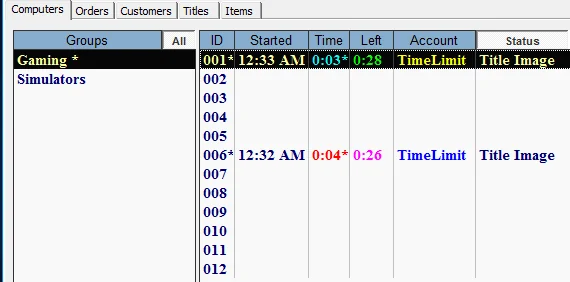
Netcraft Manager Computers page with PCs in session, start times, time used and time left
The Computers page with live sessions.

Control any PC from the counter

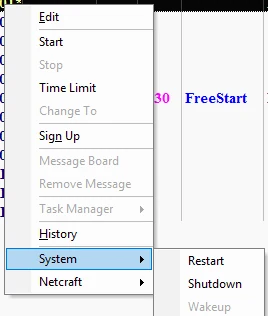
Right-click a PC to start a session, set a time limit, move the player or stop. The System menu restarts, shuts down or wakes the PC.

  • Start, Time Limit, Change To and Stop
  • Restart, Shutdown and Wakeup without walking to the PC
  • Open a program on a PC while a session runs
Netcraft right-click menu on a PC with Start, Time Limit, Stop and the System menu with Restart and Shutdown
The right-click menu on a PC, with the System menu open.

Time limit with the price worked out

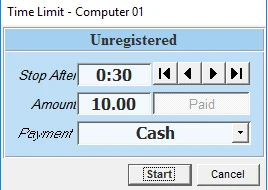
Pick the length of the session and Netcraft works out the price from the PC's price per hour. Take the payment at the start or at the end, as you choose.

  • 30 minutes, an hour or the length you allow
  • Price from the PC's price per hour, not typed by hand
  • Paid at the start or at the end, as you set it
Netcraft Time Limit window with session length, amount and payment type
Starting a PC with a time limit.

Sessions, members and bills together

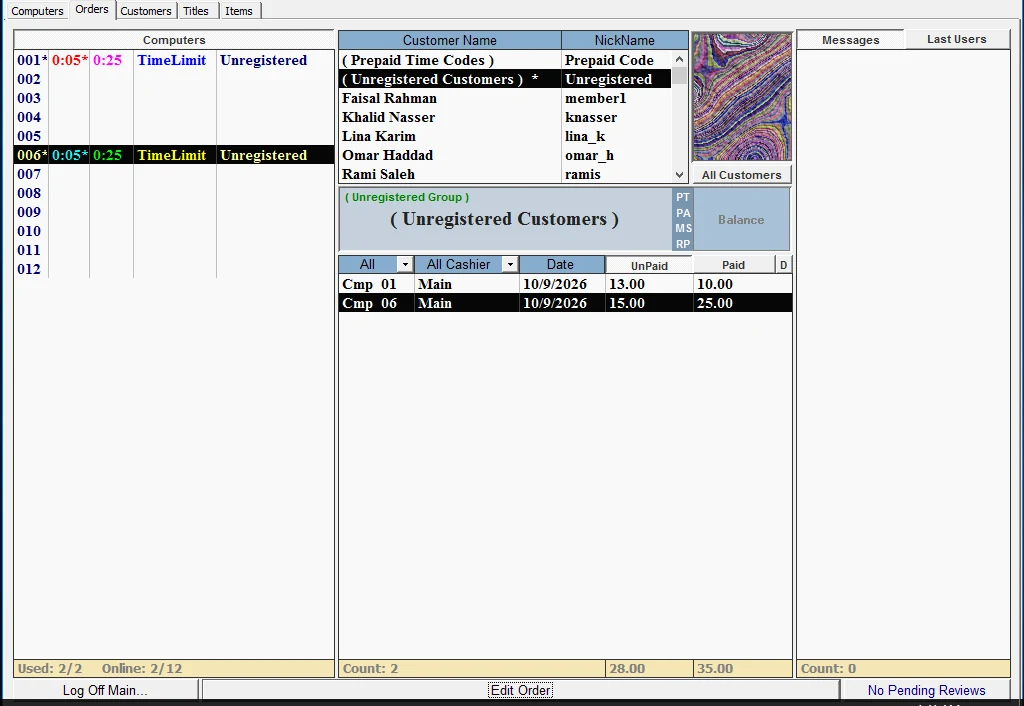
The Orders page shows every PC, your members and the bills of the selected customer, with what is paid and what is still open.

  • Paid and unpaid bills side by side
  • Filter bills by cashier and date
  • A member's balance one click away
Netcraft Orders page with PCs, members and bills
The Orders page.

Café and members

Café orders on the same bill

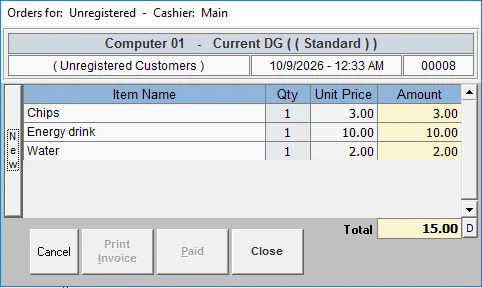
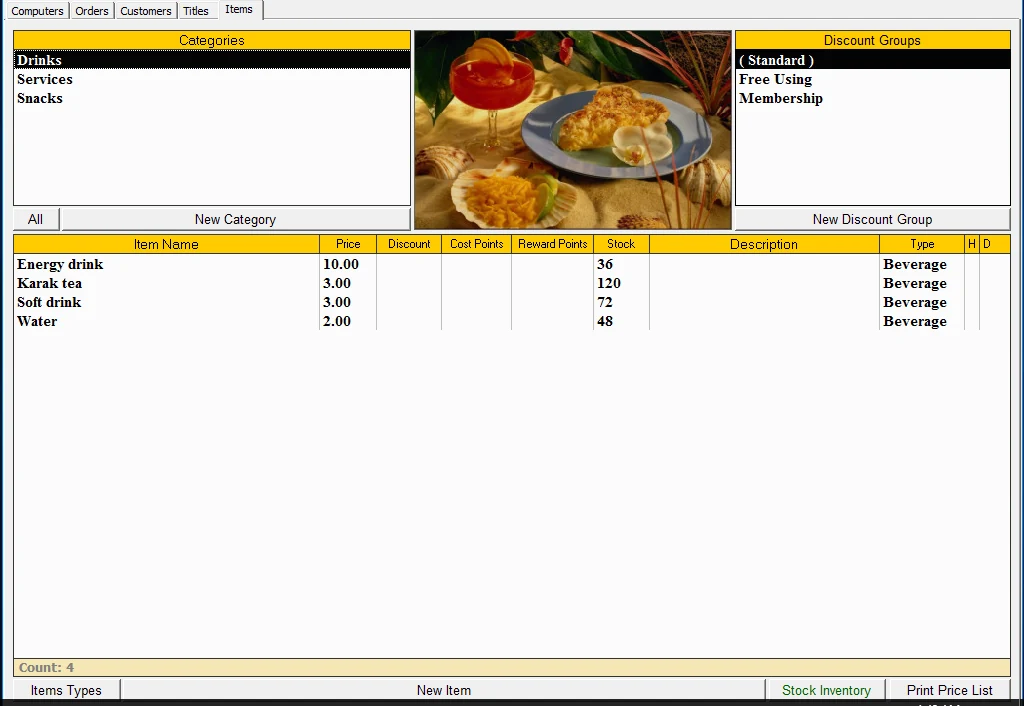
Drinks and snacks go on the player's bill from your menu, and the bill is paid in one go with cash, card or your own payment types.

  • Items added from the counter or ordered from the PC
  • One payment for time, drinks and snacks
  • A discount limit for each staff member
Netcraft bill for a PC with drinks and snacks
A PC bill with drinks and snacks.
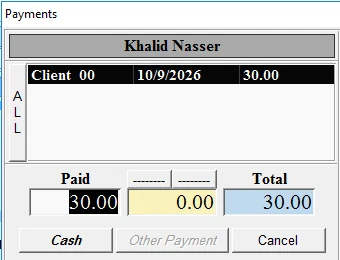
Netcraft payment window with paid amount and total
Taking the payment.

Members and prepaid balance

Members log in on any PC with their nickname and password. Sell them balance or hours at the counter and they play from it.

  • Member groups such as Regular and Management
  • Prepaid balance or hours sold at the counter
  • Reward points and printed prepaid codes
Netcraft Customers page with member names and nicknames
Members on the Customers page.

For the owner

Your prices and rules

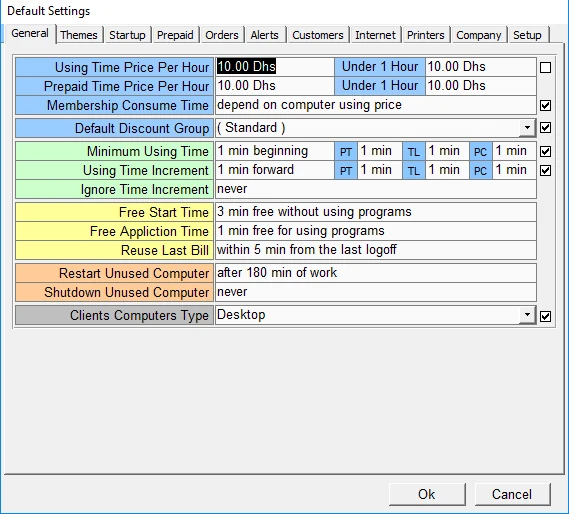
Default Settings holds the price per hour, a separate price for sessions under an hour, the minimum charge, rounding and free start minutes.

  • Price per hour, and a price for under one hour
  • Minimum using time and rounding
  • Free start minutes and restart of unused PCs
Netcraft Default Settings with price per hour, minimum using time and free start time
Default Settings, General tab.

The daily sales report

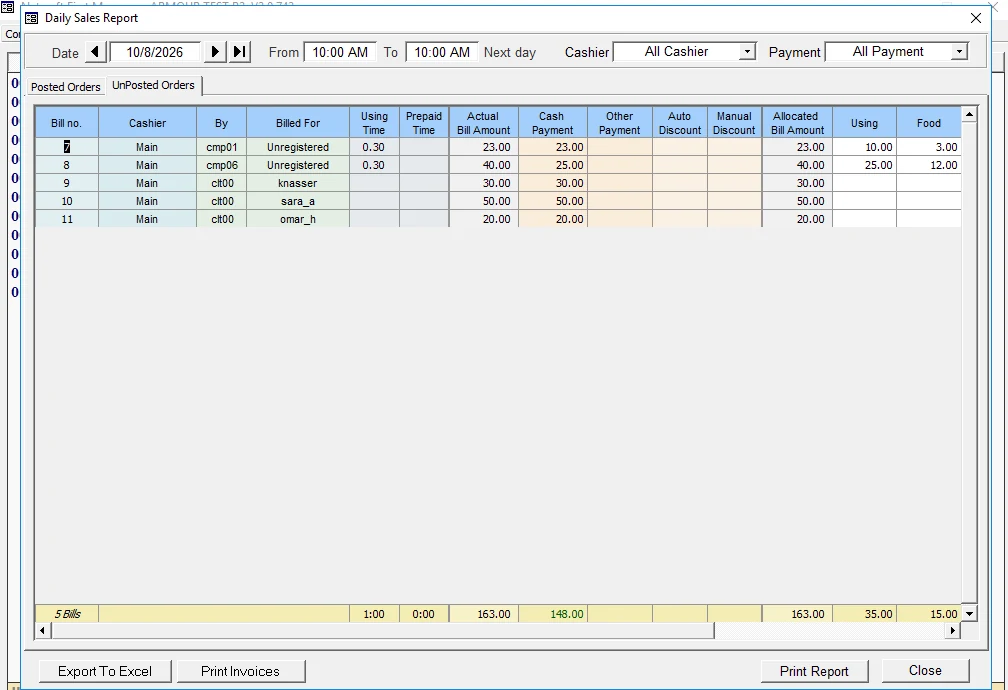
See the day from your opening time to the next morning: every bill, the cashier who took it, cash and other payments, and discounts.

  • Your working day, even past midnight
  • Filter by cashier and payment type
  • Print it or export it to Excel
Netcraft Daily Sales Report with bills, cashiers and payments
The Daily Sales Report.

On the player's PC

What players see

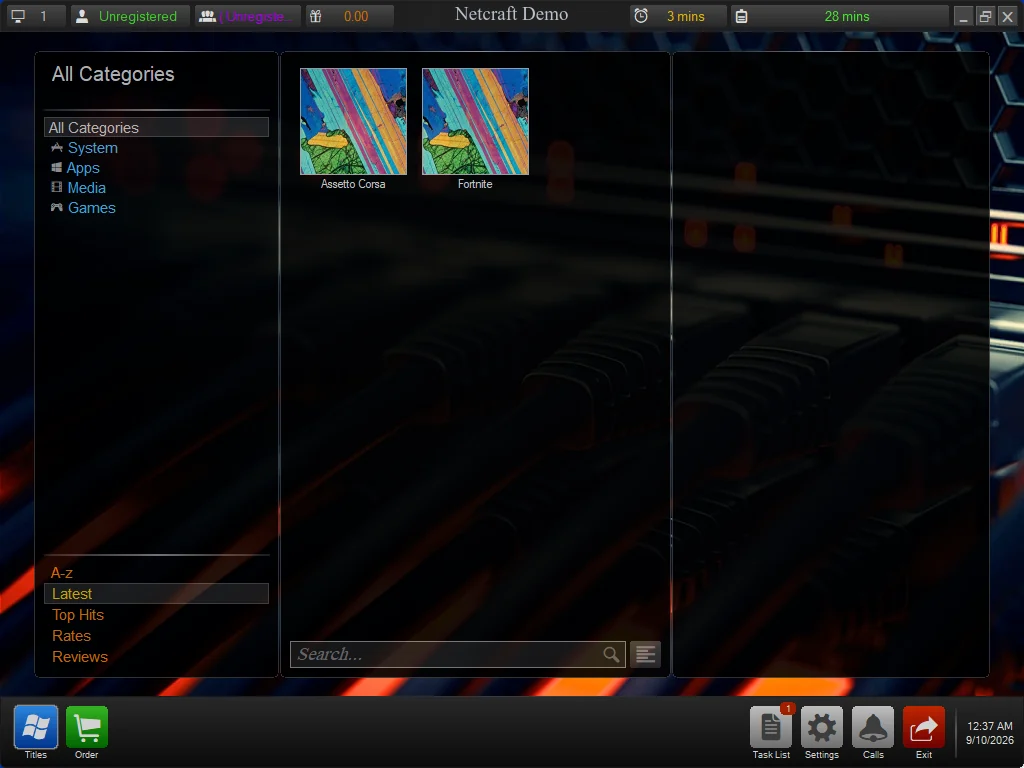
Each PC opens on the Netcraft screen. Players see the games and apps you allow, the time used and the time left, and can order from the PC.

  • Games and apps you choose, by category
  • Time used and time left on the top bar
  • An Order button for drinks and snacks
Netcraft player screen with games list, time used and time left
The Netcraft screen on a player's PC.

Tell us about your place

We'll reply on WhatsApp with a quote for your centre. Your answers go into a message that you send yourself. This site doesn't keep them.

Or contact us directly